
How to track who made booking changes using Staff PINs
See which team member made each booking change or manager override.
In a busy restaurant, lots of people work on the same booking. One person takes the reservation, another moves the table, and a manager approves a late change. With Staff PINs in simpleERB, you can see who did what without having to guess.
Staff PINs are set up in the 'Staff settings' section.
How it works
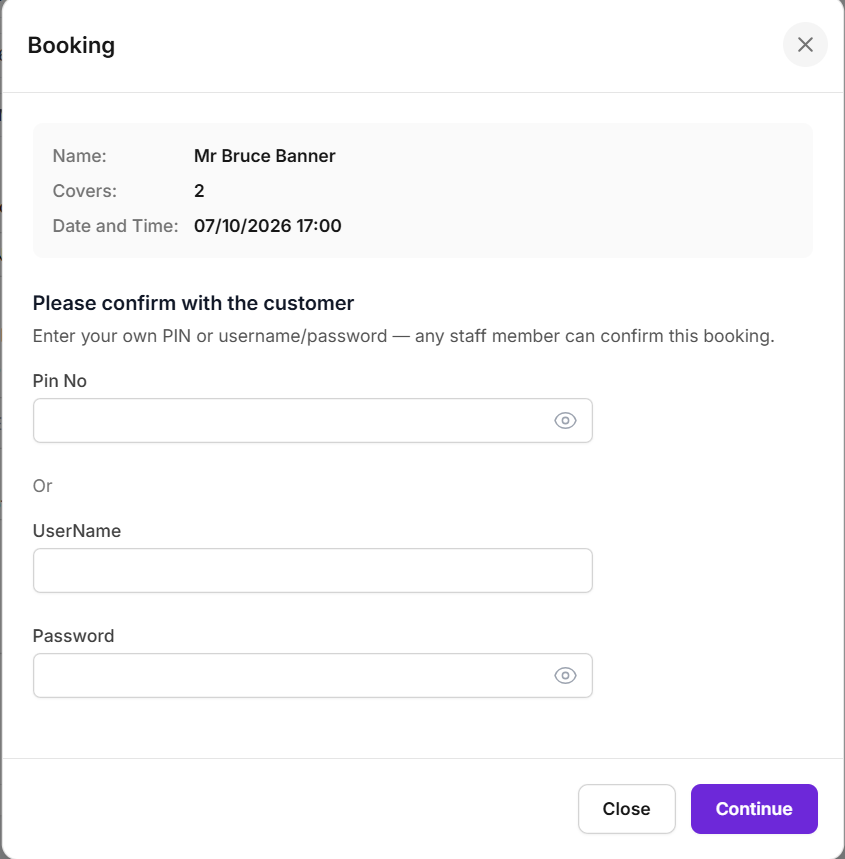
When the PINS feature is enabled, a PIN popup asks staff to enter their PIN before saving certain actions, such as creating or editing a booking, or authorising a manager override.
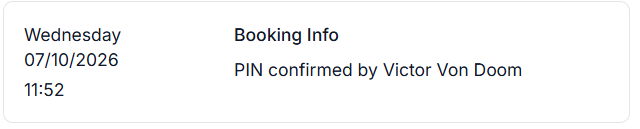
Once the PIN is entered and the action is saved, simpleERB records the following in the booking notes:
- The username that belongs to the PIN that was entered
- A timestamp that matches the time the action was saved
Note: The PIN record has the same timestamp as the saved action, so you can match each change in the booking history to the team member who made it.
Why it's useful
- Accountability: See which team member created, edited or changed a booking.
- Manager overrides: Know who approved an override and when.
- Faster answers: When a guest or colleague asks about a booking, the history is in the notes.
- Better security: PINs stop people from making changes under someone else's name.
How to turn it on
- Go to 'Staff settings'.
- Enable the 'PINS' feature.
- Make sure every team member has their own username and PIN.
Once PINs are enabled, the booking notes are recorded automatically.
Adding PINs to usernames
Existing usernames: To add a PIN to an existing username, edit the username, enter a new PIN in the PIN field and save to update.
New usernames: When you create a new username, the PIN field is included, so you can set the PIN at the same time.
Example: creating a new booking
When a team member creates a new booking, the PIN popup appears before the booking is saved. After they enter their PIN and save, the booking notes show their username and the time the booking was created.
Important: Give each team member their own PIN and ask them not to share it. If PINs are shared, the booking notes may not show the person who actually made the change.