
Booking Rules and Setup
How to add card capture or a payment requirement to a booking option
Secure your special events, set menus, and promotions by attaching card capture or prepayment rules to specific booking options
Adding a card capture or payment requirement to a booking option ensures that your high-demand events, holidays, or special promotions are protected against no-shows. By linking payment rules directly to a booking option, you can collect prepayments or hold card details securely.
Important info: Card capture and payment requirements can be applied selectively, meaning you can protect specific ticketed events without changing your standard table booking settings.
How to link payments to a booking option
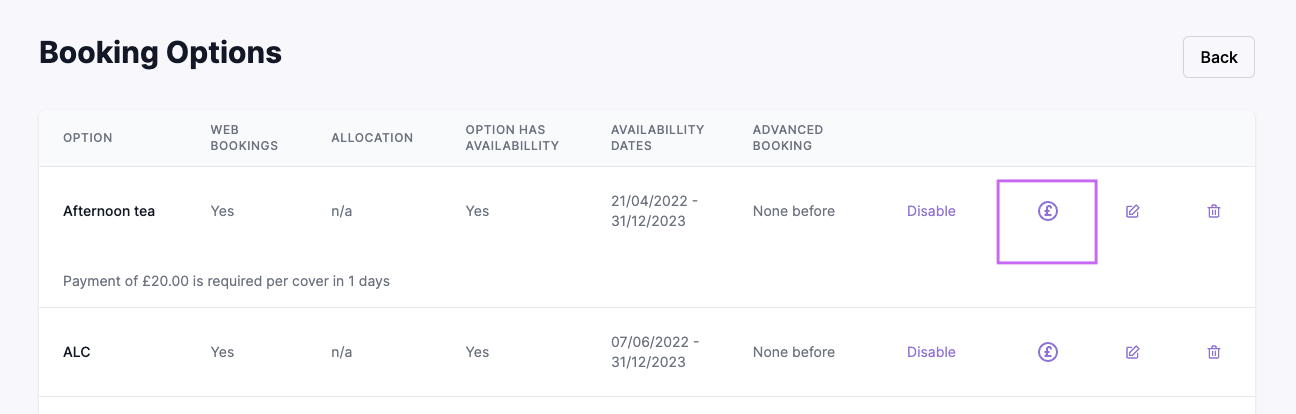
- 1: Navigate to your payment or card capture settings in your simpleERB dashboard.
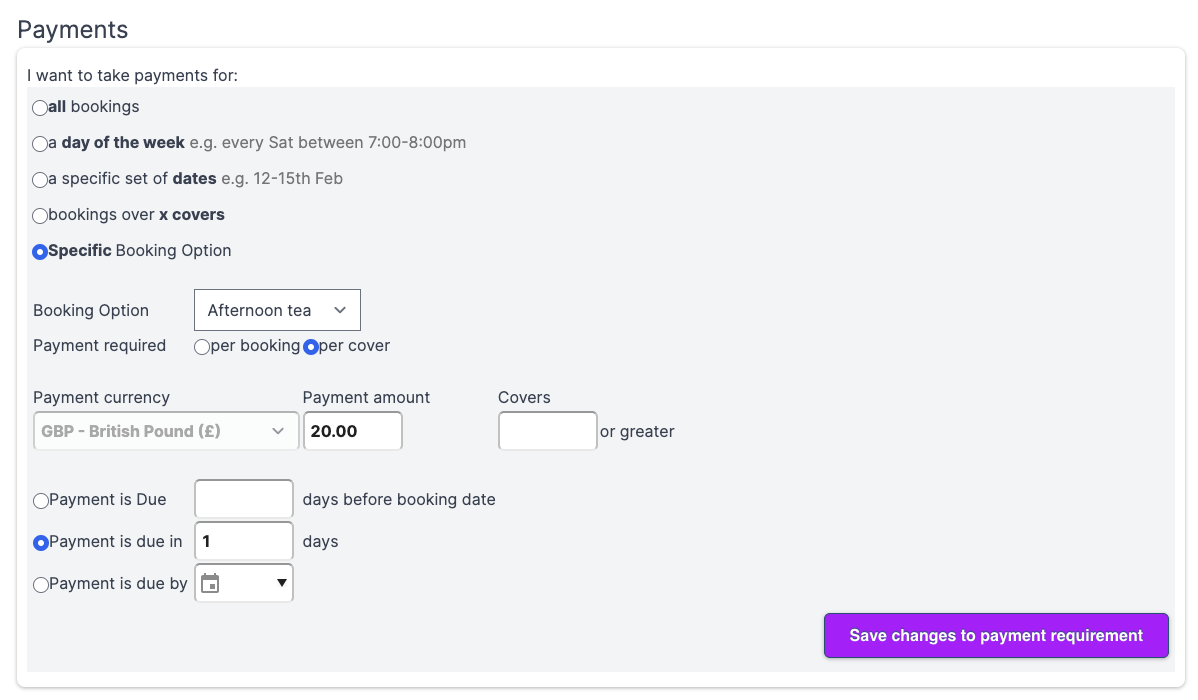
- 2: Create or edit your payment rule, specifying whether you require full prepayment or card details stored.
- 3: Select the specific booking option you wish to apply the payment or card capture rule to.
- 4: Save your configuration so customers are prompted for payment or card details when selecting that option on the widget.
Images: Payment and Card Capture Settings
Need help setting up general booking options?
If you haven't created your selectable booking options yet, check out our guide on how to add them to your widget.